Let’s start with what we know about the Playwright automation library.
Playwright is an open-source test automation library initially developed by Microsoft contributors. It supports programming languages like Java, Python, C#, and NodeJS. Playwright comes with the Apache 2.0 License and is most popular with JavaScript and TypeScript. It’s currently the most popular automation tool, mostly used for Web and API automation, But it can do more than that. Refer to https://playwright.dev/ for more information.
Let’s shift our focus to the topic of this blog.
Last week, one of my colleagues reached out to me for a solution to a problem he was facing with Playwright. He was very new to playwriting and was taking help from online course materials and Google searches for most of his scripting. However, for this particular problem, he was not getting any working solutions from these sources. Even though there were many answers listed on the internet, nothing seemed to work for him. Without any luck online, he reached out to me, as our team were the early adaptors of Playwright (moving away from the now-deprecated Protractor) in our organization. We had done a lot of research and learned a lot from trial and error using Playwright in the initial days.
The problem my colleague was facing was that his playwright script was not able to handle downloads (he was using the Chrome browser). His script seemed to have invoked the download action but never downloaded the content. We have handled that in our framework, and it is working seamlessly. I provided my solution, and the download started working fine for him too.
So here I want to share the working solution for enabling download in Playwright.
Enable Download in the playwright.config.ts file, either at the framework level (applicable to all browser types) or at the browser level (applicable to specific browsers). I would recommend enabling download on both levels to be on the safe side.
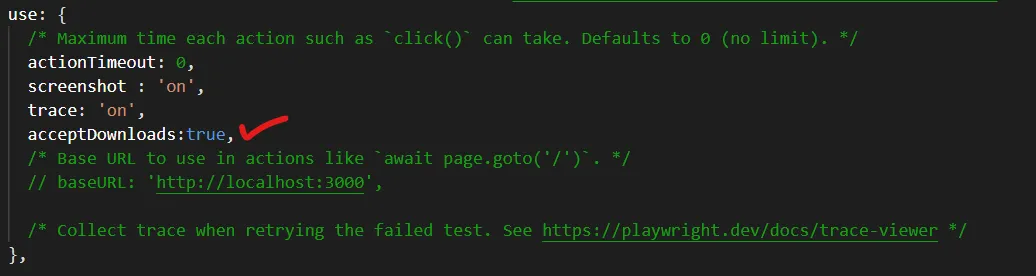
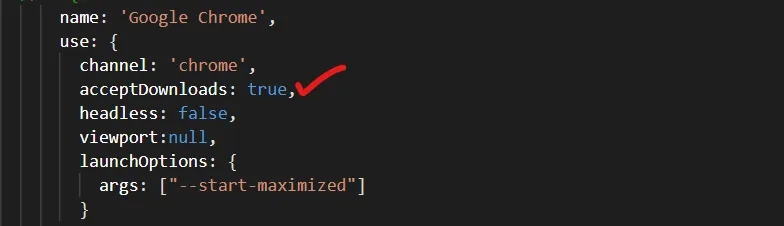
Now add the below lines to your code to download the content in the browser. Replace “this.downloadFile.click()” with the download triggering element or action of your application. This will trigger the download action and wait for the content to be downloaded completely.
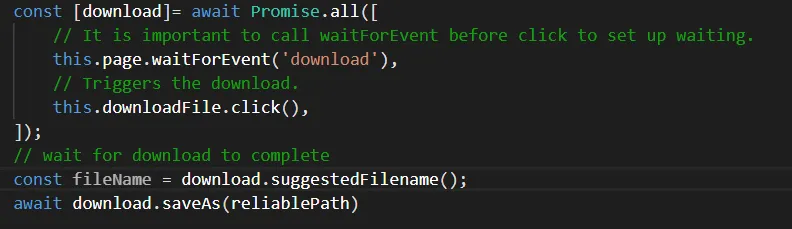
The line “download.suggestedFilename()” returns the downloaded file name, And “download.saveAs(reliablePath)” saves the downloaded file with a new file name (replace reliablePath with the new file name’s full path).
The above solution works with 100% reliability. Make sure the download triggering element is visible on the UI before invoking the above download event handler. You can use the below statement to wait for the element to be visible on the UI or timeout after waiting for a specific time duration.

Read original blog here.
Thank you for reading this post.